
|
Navigation from your Home screen:  Fleet
Fleet
Use the Fleet Hub to add and manage the units in your fleet, and view operation and performance information.
To view a tutorial for this topic from the web application, click the Tutorials icon ( ), or to view a list of available tutorials.
Use the Search Open tab for the quickest way to view a list of active unit records, or click a status tile on the Fleet Operations dashboard.
Adding & Removing Fleet
 Import a unit to your fleet (Automated Fleet Import)
For locations with a manufacturer that use an automated fleet import process, units ready for import are placed in Pending Import Details status, so you can import these units to the active fleet.. See "Automated Fleet Import" for more information, including possible restrictions.
Remove a unit from your fleet
Your employee role must have the Remove From Fleet permission to remove a unit from the fleet. See "Roles & Permissions" for more information.
Notes:
- You cannot remove a unit that is In Use.
- If a unit is associated with a Close Pend agreement, it cannot be removed from the fleet until the agreement is officially closed.
- Find and view the unit record.
- Click Remove From Fleet, available on the side panel of the record if the unit is not In Use.
- On the Remove From Fleet dialog, verify the required information, marked with red asterisks (*).
- Click .
Return a removed unit to the fleet
Your employee role must have the Edit Fleet permission to edit unit records and return a removed unit to the fleet.
- Find and view the unit record.
- Click Return to Fleet to return the removed unit to the fleet.
- Verify the required information, marked with red asterisks (*).
- Click .
From the Fleet Hub
Search for a unit record
When searching for records that include a special character (such as a colon or hyphen), use quotation marks for an exact search or do a partial search. For example, to find a record with an associated Unit Number of TSD1-4, try searching TSD1 for a partial search, or entering "TSD1-4" for an exact search.
Note: Your search results contain records from all locations to which you have viewership. If you select a record from another location, a message is displayed letting you know that the record exists at another location and you're provided the option to automatically switch to that location to view the record.
- Enter search criteria on the Fleet Hub (e.g., Unit Number, VIN, Make, etc.).
- (Optional.) Select from the Filters list to narrow your search by category: Unit Number, License Plate, VIN, Model, or Trim. By default, all categories are included. So, if you want to search for Unit 'U007', enter U007 in the search bar, then select Unit Number from the list.
- Click . Up to 100 results are shown, by default, but you can choose to display 10, 25, or 50 entries, as well as navigate to the next page of results.
- (Optional.) Apply additional filters to narrow results by location, fleet type, and status using the check boxes on the left panel:
 ) or List (
 ), and set as your default view. Export fleet search results to a CSV or PDF
You can easily export search results from the Fleet Hub to have quick access to unit information in a printable PDF or Microsoft Excel report.
- On the Fleet Hub, enter search criteria and/or use the filters on the left to narrow your results. For example, if you want to export a list of ready units, select Ready from the list of Status search filters.
- To export results to a CSV spreadsheet, click the CSV button tab (
 ). See "Key Columns in CSV or PDF Export" for a list of columns included in your exported results.
 - To export results to a PDF, switch to Table view (
 ) and click the PDF button (
 ). Exported results contain the same columns as displayed in the application.
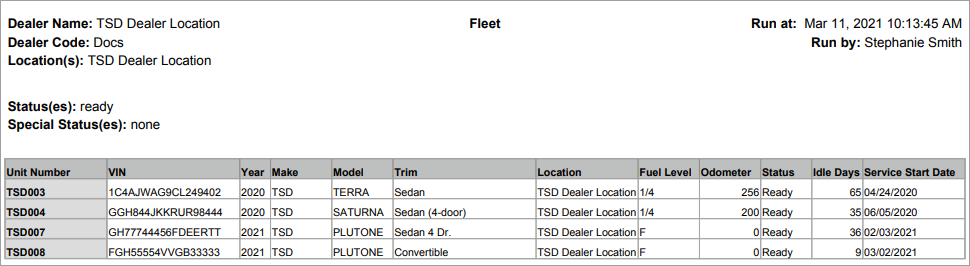
Key Columns in CSV or PDF Export
View and edit a unit record
Note: For instructions on editing unit records on the mobile app, see "Edit a unit record" in the Mobile Fleet Management topic.
Your employee role must have the Edit Fleet permission to edit unit records, the Fleet Status permission to change a unit's status, and the Remove From Fleet permission to remove a unit from the fleet. See "Roles & Permissions" for more information.
- Search for the unit record, if necessary. Click the record from your search results to view it.
- Edit a unit record. Click from your search results, or view the record and click Edit Unit from the side panel. Make your changes, and click . Some fields may be unavailable for editing. See "Glossary of terms" for information on fields and options on this page.
- Options while viewing a unit record. Depending on the unit's status, you can do the following when viewing the unit record:
- Edit a unit record. Click Edit Unit from the side panel. To edit maintenance information, click the edit button (
 ) on the section you want to edit.
- Inspect a unit.
- View inspection history.
- View unit record history (events).
- View an associated agreement.
- Print a unit QR code.
- View or edit messages, if applicable.
- View a map of the unit's location with Connected Car Integration (with GPS).
- View recall information.
Note: Updating a unit record does not update the information on any associated agreements.
Fleet Features
Print QR Codes
You can generate and print a QR code for a single unit (say, if you need to place a QR code in a vehicle or key tag), or generate a print-ready page containing every active unit in your fleet at once.
- To print a single QR code:
- View the unit record for the unit whose QR code you want to print, and click Print QR Code on the side panel.
- A print-ready preview opens in a separate browser tab. It contains the barcode associated with the unit's VIN and unit information (Unit Number, VIN, Year, Make, Model, and License Plate).
- Click .
- To print QR codes for your entire fleet at once:
- Go to the Fleet Hub and click Bulk Print QR Codes.
- A print-ready preview (defaulting to Letter paper size) opens in a separate browser tab. It contains the barcode associated with every active unit in the fleet (not Removed from Fleet or Removed from Pending Import), at the same code size as an individually printed unit.
- Click . When printing in bulk, the preview defaults to Letter paper size.
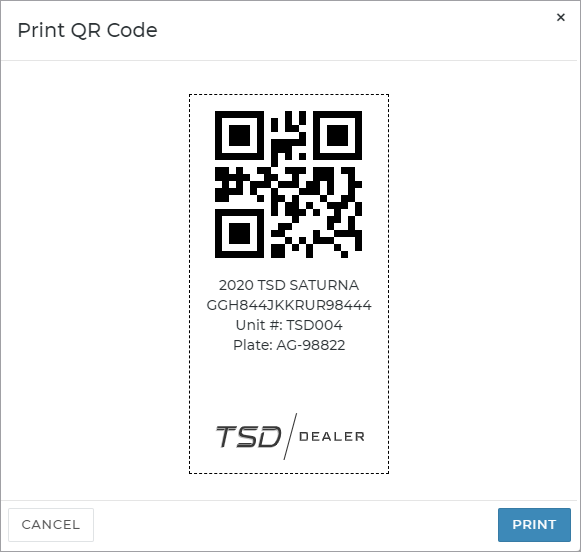
Hover to view the full-sized image.
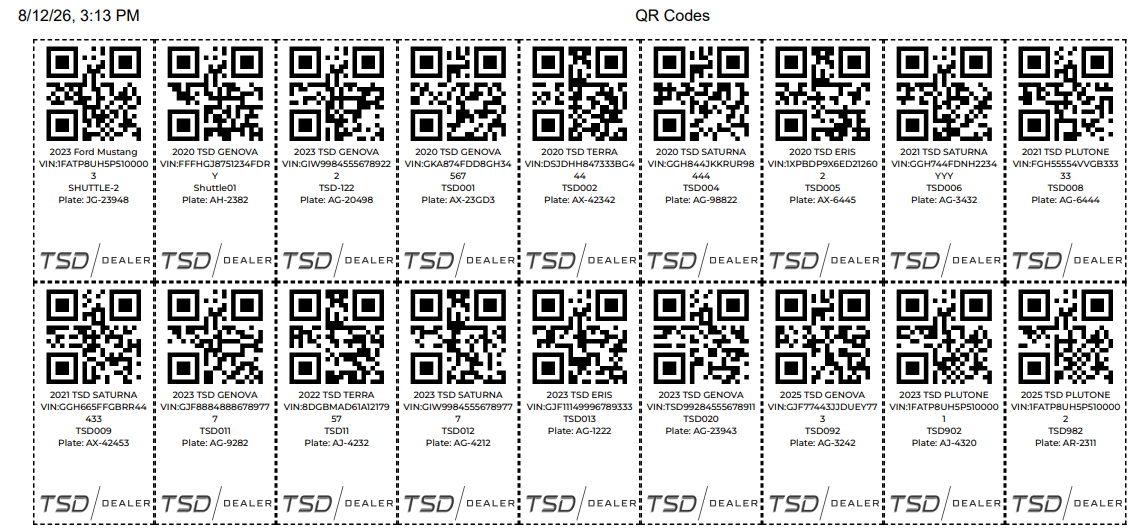
Hover to view the full-sized image.
View Safety Recall information
If units in your fleet are associated with one or more safety recalls, your manufacturer may flag the unit for recall. Depending on your manufacturer, the recalled unit may be automatically set to a Recall status that cannot be changed to ensure no driver uses it until the recall campaign is completed, or your location may need to manually place these units on a Recall status (or Hard Hold, if the unit is In Use).
HMA SRC lets you track these unit recalls and view more information when a manufacturer has assigned a recall to a unit. See "Vehicle Safety Recalls" for more information.
When a unit is assigned to a recall by your manufacturer, a Recall tag is added to the unit record. Depending on your manufacturer, the unit's status may have also automatically been set to Recall.
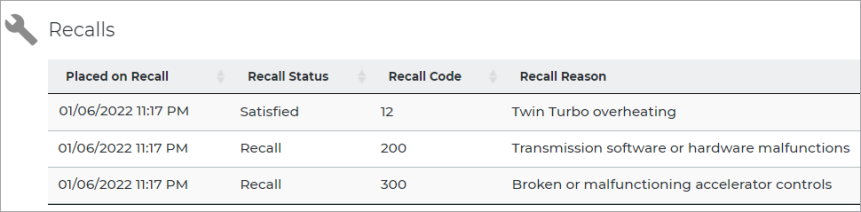
A Recalls section is displayed on the unit record, containing the following information about the recall(s):
- Placed on Recall: The date and time the unit was assigned a recall or was released from the recall by your manufacturer, as applicable.
- Recall Status: The status of the recall: Recall, if the recall is still active, or Satisfied, if the recall was released by your manufacturer.
- Recall Code: Code identifying the type of recall, as issued by your manufacturer
- Recall Reason: Description of the recall, if provided by your manufacturer when requesting the recall (e.g., Radiator Structure failure)
Upload Unit Attachments
Note: This feature must be configured for your location by TSD. Contact your TSD Sales Representative at sales@tsdweb.com for more information.
Add important communications or documents to fleet records with unit attachments.
At the bottom of every unit record, you'll find a Unit Attachment section, where you can drag and drop one or more file(s) to upload or click . The following file extensions are accepted: jpe, jpg, jpeg, gif, png, bmp, ico, svg, svgz, tif, tiff, ai, drw, pct, psp, xcf, psd, raw, txt, pdf, xls, xlsx, doc, docx, ppt, odt, ods, odp.
After your attachment is uploaded, you can or it.
Unit Attachment events are recorded in the unit's history log, accessible via the History button on the unit record. See "Unit History (Event Logging)" for more information.
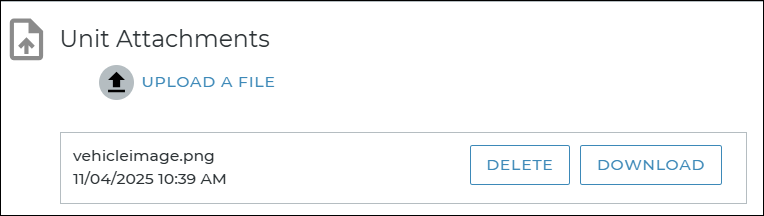
Hover to view the full-sized image.
Glossary of terms
Agreement Days
Agreement Days is the total number of Agreement Days for the unit since it has existed in your fleet.
Agreement Number
The agreement's identification number (e.g: A352), automatically assigned by the system when an agreement is created. You can view an Agreement Number at the top of an agreement record, as well as when viewing an In Use unit.
Battery Level (%)
Note: These fields are only displayed for electric vehicles (units with a Fuel Type of Electric). Gas vehicles use Fuel Level.
For electric vehicles in your fleet, the Battery Level (%) represents the percentage measurement of the electric charge remaining in the vehicle's battery (e.g., 80%).
You may see this referenced on unit records, agreements, and reports throughout the application:
- Current Battery Level (%): The current battery level percentage recorded in the unit's record; when assigning a unit to an open agreement, this field is displayed for reference only and cannot be edited.
- Battery Level Out (%): The current battery level percentage recorded at the time the unit is assigned to an open agreement; at return during an exchange or close agreement, this field is displayed for reference only and cannot be edited.
- Battery Level In (%): The current battery level percentage recorded at the time the unit is returned during an exchange or close agreement.
Note that, when an agreement is closed, a unit's returning information is saved as a snapshot, so that if the agreement is re-opened in the future, even if the Fuel Type of that unit has changed to gas, the agreement still displays the battery level at the time the agreement was opened.
Current Location
The Current Location on a unit record is the current physical location of the unit, as opposed to the Owner Location, which is the financial owner of the unit.
Note: On the mobile app, neither the Current Location nor the Owner Location can be edited.
On the web, restrictions may be applicable when it comes to changing a unit's current and/or owner location, based on your manufacturer's program guidelines. These are applicable when adding and editing a unit record.
Date Added
This field is unavailable for editing.
A unit's Date Added is the date on which the unit record was created (in other words the date the unit was either manually added to the fleet or imported from the Pending Import Details fleet feed, for locations with automated fleet import).
- For locations that manually add units, when adding a unit, the Date Added is displayed on the Location tab of the new unit record process; it is set to today's date and cannot be edited.
- For locations with automated fleet import, the Date Added is displayed on the Import from Feed dialog; it is set to the date the unit was sent by the manufacturer and cannot be edited. After you finish importing the unit to the fleet, the Date Added is updated to today's date, to show the date it was actually added to the fleet.
Enable Connected Car
Updates to this field are logged in the unit history, accessible via the History button on the side panel of a unit record. See "Unit History (Event Logging)" for more information.
Notes:
- For locations with auto-enrollment, this setting is turned on, by default. Auto-enrollment is supported by certain providers; contact your TSD sales representative for more information.
- For locations with device-based Telematics, this field is turned on and off automatically when a unit is enrolled or unenrolled, respectively.
If a unit's Owner Location has TSD Telematics, the Enable Connected Car toggle indicates whether a unit is enrolled in Telematics, making the unit a "Connected Car".
- :For locations with device-based Telematics, this field is turned on and off automatically when a unit is enrolled or unenrolled, respectively, but may be available for editing, depending on your provider and manufacturer.
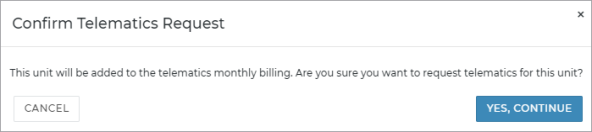
- For locations using direct-connect Telematics, this field may be available to manually enroll or unenroll a unit,depending on your manufacturer. When selected, a Confirmed Telematics Request message is displayed: "This unit will be added to the telematics monthly billing. Are you sure you want to request telematics for this unit?" Click to continue enrolling the unit in Telematics, or to cancel and return to the unit record. See "TSD Telematics" for more information.
Expected Return Date
The expected Return Date is the date and time the customer is expected to return the assigned unit. When the unit is returned and the agreement is being closed, this becomes the actual Return Date and time. You can view this date on appointments, open agreements, unit exchanges, and unit records of In Use units.
When opening or editing an agreement, you cannot select a Return Date that is more than 29 days from the Checkout Date.
Note: When editing an agreement, if you're updating the Checkout or Return Date, you can select a Reason (for example, Parts Availability, Awaiting Customer Authorization, or Work in Progress).
Business Cases regarding the Return Date:
Checkout Date and Return Date rules for agreements and exchanges
Exterior Color
Updates to this field are logged in the unit history, accessible via the History button on the side panel of a unit record. See "Unit History (Event Logging)" for more information.
While optional, the Exterior Color of a unit is a useful field to fill in, as customers may request a specific colored unit at the counter.
Fleet Type search filters
You must have Shuttle Service turned on at your location by TSD for this feature to be available.
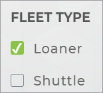
If you use Shuttle units in addition to Loaner units, a Fleet Type search filter is available on the Fleet Hub for you to filter search results by the type of unit.
Fuel Capacity
Unit’s fuel capacity or tank size in gallon or liters, depending on your system's Fuel Capacity Unit management setting.
Fuel Level
Note: These fields are only displayed for gas vehicles (units with a Fuel Type of Gas). Electric vehicles use Battery Level.
For gas vehicles in your fleet, the Fuel Level represents the amount of fuel in the unit's tank in eighths or sixteenths, depending on your system settings.
You may see this referenced on unit records, agreements, and reports throughout the application:
Other fuel-related fields:
- Current Fuel Level: The current amount of fuel in the unit's tank; when assigning a unit to an open agreement, this field is displayed for reference only and cannot be edited.
- Fuel Level Out: The current fuel level amount recorded at the time the unit is assigned to an open agreement; during an exchange (for the returning unit) or close agreement, this field is displayed for reference only and cannot be edited.
- Fuel Level In: The current fuel level amount recorded at the time the unit is returned during an exchange or close agreement.
Turn on a Low Fuel or Missing Fuel alert, so you can be notified when the fuel level of a unit is less than 1/4, when a unit is returned with less fuel than the Fuel Level Out. See "Alerts" for more information.
Note: Fuel and odometer may be automatically retrieved from a vehicle (for example, though an integration with TSD Telematics). In some cases, you may manually edit these values, but refer to the Help topic on your integration for more information.
Fuel Type
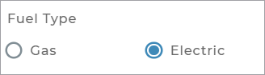
When adding or importing a unit to the fleet, you can use the Fuel Type selection to identify units as gas (the default) or electric vehicles.
Note that for Electric vehicles, the Battery Level (%) field replaces Fuel Level on unit records, and the agreements show the Current Battery Level (%), Battery Level Out (%), and Battery Level In (%) instead of fuel. Additionally, electric vehicles do not generate fuel charges, so if you have fuel charges set up, this charge for fuel is only displayed if a gas vehicle was assigned to the agreement, and is only applicable to the gas consumed, not the electric vehicle's battery.
Updates to this field are logged in the unit history, accessible via the History button on the side panel of a unit record. See "Unit History (Event Logging)" for more information.
Fuel Units
This field is unavailable for editing.
This field is based on the following management setting in Admin Setup: Fuel Capacity Unit in Admin Setup (Management tab).
The unit of measurement for the unit's fuel capacity or tank size (gallons or liters).
Note: (For locations that manually add vehicles only) For electric vehicles, based on the Fuel Type, this field is not displayed, since it is not applicable.
Hard Hold
Updates to this field are logged in the unit history, accessible via the History button on the side panel of a unit record. See "Unit History (Event Logging)" for more information.
When editing a unit record, select the Hard Hold check box to prevent a unit of any status from being assigned to an appointment or agreement. When putting a unit on Hard Hold, you must also enter a reason (Hard Hold Reason).
Track the number of active units in your fleet placed on Hard Hold on your Fleet Operations dashboard. See "Fleet Operations & Performance Dashboards" for more information.
Hard Hold Reason
Updates to this field are logged in the unit history, accessible via the History button on the side panel of a unit record. See "Unit History (Event Logging)" for more information.
When a Hard Hold is applied to a unit, you must enter a reason of up to 100 characters (example: "Grounded for sales" or "Grounded for VIP customer").
Inspection Expiration Date
Updates to this field are logged in the unit history, accessible via the History button on the side panel of a unit record. See "Unit History (Event Logging)" for more information.
Expiration date of the unit's inspection sticker.
Track the number of units in your fleet with inspection stickers that are expired or expiring within 30 days on your Fleet Operations dashboard. See "Fleet Operations & Performance Dashboards" for more information.
Is Flagged for Removal
Updates to this field are logged in the unit history, accessible from the side panel of a unit record. After an In Use unit has been automatically removed from fleet, the removal is also logged in the unit history. See "Unit History (Event Logging)" for more information.
You cannot remove a unit from the fleet if it is currently In Use on an agreement, but an IS FLAGGED FOR REMOVAL option is available when editing these units records to flag an In Use unit for automatic removal from the fleet upon its return, when the agreement is closed or close pended.
When you select this option and update the unit record, a confirmation prompt is displayed: "Once the unit is off a loan, it will be automatically removed from the fleet. Are you sure you want to proceed?"
Last Communication
For locations with Connected Car integration and unit records with Connected Car enabled, the Last Communication is the date and local time at which telematics were last provided. See "TSD Telematics" for more information.
Last Reconciliation Date
Note: This field is displayed when editing a unit record on the mobile app. See "Fleet Management on the Mobile App" for more information.
When editing a unit record on the mobile app, the Last Reconciliation Date shows the most recent date and time the unit was accounted for during the mobile Fleet Reconcile process. If the unit hasn't been accounted for, the date and time is blank.
Make
Make of unit. On new units, the Make is filled in automatically based in the VIN, but you can change it, if necessary.
Available options may be based on the following management setting in Admin Setup: Restricted Make in Admin Setup (Management tab)
Messages
If any unit alerts apply to a unit, such as an expired license plate, an expandable section is available at the top of a unit record, appointment, or agreement. See "Unit Availability & Alerts" for more information.
 Messages
Miles, Odometer
Updates to this field are logged in the unit history, accessible via the History button on the side panel of a unit record. See "Unit History (Event Logging)" for more information.
The Current Miles on a unit record reflects the current odometer reading of the unit.
Other odometer-related fields:
- Miles In: The unit's odometer reader at the time of return from an agreement or exchange. Depending on your manufacturer, this may be Customer Miles In and Dealer Miles In on Delivery and Collection agreements.
- Miles Out: The unit's odometer reading, at the time the unit is assigned to an agreement or exchange. Depending on your manufacturer, this may be Dealer Miles Out and Customer Miles Out on Delivery and Collection agreements.
Notes:
- Field validations and restrictions may be applied to this field.Read more.
- Using TSD Telematics Integration? This information may be retrieved from the device and automatically filled in. Read more.
Model
Model of the unit. On new units, the Model is filled in automatically based in the VIN, but you can change it, if necessary.
Odometer Units
This field is set by default based on your Odometer Unit management setting.
When adding a new unit, this is the unit of measurement for a unit's current odometer reading (miles or kilometers).
Owner Location
Updates to this field are logged in the unit history, accessible via the History button on the side panel of a unit record. See "Unit History (Event Logging)" for more information.
A unit's Owner Location is the location that owns the vehicle, as opposed to the vehicle’s current location. When adding a new unit, this selection is unavailable and defaults to your current location. The Owner Location list contains locations to which you have viewership.
Note: On the mobile app, neither the Current Location nor the Owner Location can be edited.
On the web, restrictions may be applicable when it comes to changing a unit's current and/or owner location, based on your manufacturer's program guidelines. These are applicable when adding and editing a unit record.
License Plate Information
Permission required to edit this information: Edit License Plate
A unit's license plate consists of the following fields:
- License Plate Number; the plate number must be unique for your state or region for active units in the fleet, and contain no spaces or special characters
- License Plate Expiration Date (or License Plate Sticker Expiration)
- Country
- State; optional when adding a unit from Pending Import Details
Track fleet with license plates that are expired or expiring within 30 days. See "Fleet Operations & Performance Dashboards" for more information.
Updates to this field are logged in the unit history, accessible via the History button on the side panel of a unit record. See "Unit History (Event Logging)" for more information.
Service End Date
This field is unavailable for editing.
For units that have been removed from the fleet, the Service End Date is the date the unit was removed.
Service End Miles
This field is unavailable for editing.
The odometer reading of the unit on the day it was removed from the fleet; unavailable for editing.
Service Start Date
The Service Start Date cannot be edited if the Lock Service Start Date management setting is enabled for your location or at the OEM level.
A unit's Service Start Date, or in-service date, represents the first day on which the unit becomes available for service and able to be used on appointments and agreements.
If your location manually adds units to the fleet, or if your location uses automatic fleet import but the Lock Service Start Date setting is not enabled for your location, the Service Start Date is set to the date on which the unit record is added to the active fleet from Pending Import Details (in other words, the unit record's Creation Date).
Otherwise, a unit's Service Start Date may be provided by your manufacturer during the automated fleet import process.
You can only import a Pending Import Details unit to the fleet if the Service Start Date is today or in the past. If the Service Start Date is a future date, then the unit cannot be imported yet. When clicking , a message is displayed: "Cannot import this unit prior to its In Service Date of MM/DD/YY."
See "Automated Fleet Import" for more information about the import process.
Shuttle
You must have a Shuttle Service turned on by TSD. Contact TSD Support at support@tsdweb.com for assistance. You must also have the capability to manually add units to the fleet, in order to designate units as shuttles.
If you have a shuttle service available at your location, a Shuttle check box is available on the New Unit screen when manually adding a unit to the fleet
Special Status search filters
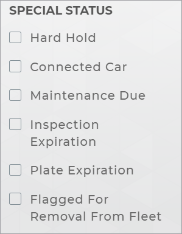
In addition to the regular Status search filters, Special Status search filters are available on the Fleet Hub for you to narrow search results by other factors, such as:
- units on Hard Hold.
- units marked as Connected Cars for telematics tracking, for locations with Connected Car integration.
- units that need maintenance, based on your location's Maintenance Intervals. See "Unit Maintenance" for more information.
- units with plates or inspection stickers that are expired or expiring within 30 days.
- units flagged for automatic removal from the fleet.
"Fleet Special Statuses" for more information about these statuses.
Status
Your employee role must have the Fleet Status permission to change a unit's status.
Note: Depending on your manufacturer, the Status selection may be set to Recall and may be unavailable for editing if the unit has been assigned to a safety recall campaign, as indicated by a Recall tag on the unit record. This is to ensure no driver uses the unit until the recall campaign is completed. See "Vehicle Safety Recalls" for more information.
Updates to this field are logged in the unit history, accessible via the History button on the side panel of a unit record. See "Unit History (Event Logging)" for more information.
This is the unit's current status (example: Ready, In Use, or Maintenance). For a complete list of fleet statuses, see "Fleet Statuses" .
Status search filters
Status search filter check boxes are available on the left panel of the hubs for you to narrow search results by status. See "Agreement Statuses", "Appointment Statuses", and "Fleet Statuses" for more information on the available filters and statuses.
Subsidy / Idle Days
If your location uses automated fleet import, this column is present when viewing a list of units that are pending fleet import in table view ( ). It shows the number of days the unit has been in the Pending Import Details status, including today and the day it was received from your manufacturer. Once you add (import) the unit to your active fleet, Subsidy / Idle Days becomes 0.
Telematics ID
For locations with TSD Telematics (Connected Car integration) and units that have Enable Connected Car turned on in the unit record, the Telematics ID is the serial number on the telematics device used to provide fuel and mileage information. See "TSD Telematics" for more information.
Transponder ID
This field is only available with Toll Processing with TSD Connect integration. See "TSD Toll Connect: Toll Processing" for more information.
Updates to this field are logged in the unit history, accessible via the History button on the side panel of a unit record. See "Unit History (Event Logging)" for more information.
A Transponder ID is a unique identifier for the transponder device associated with the VIN being used for toll processing, for locations using Verra Mobility as the toll authority.
Note: When moving transponder devices between units, you must delete the Transponder ID from the unit record of the unit whose transponder you are removing, then add the Transponder ID to the unit record of the unit that is receiving the transponder.
Trim
Trim level of the unit. On new units, this is filled in automatically based in the VIN, but you can change it, if necessary. For automatically imported units, if the Trim cannot be determined through the import, this field is set to “Other.”
Turnback Date
If your manufacturer allows you to edit a unit's Turnback Date, your employee role must have the Edit Turnback Date permission to edit the Turnback Date field on a unit record. See "Roles & Permissions".
If your manufacturer does not allow you to edit a unit's Turnback Date, then the field cannot be edited, regardless of your employee role's permissions.
A unit's Turnback Date is the date after which the unit must be removed from service. This field is automatically set when a unit is added or imported to the fleet, based on its Service Start Date and the Dealer Turnback Days or your manufacturer's settings, if applicable,
When a unit reaches its Turnback Date, the status of the unit is automatically set to Turnback Reached so you can remove the unit from the fleet.
Turnback alerts warn employees when the Turnback Date is approaching. See "Unit Availability & Alerts" for more information.
Note: Separate settings for determining default Turnback may be managed by your manufacturer at the OEM level. If so, then restrictions may be in place when it comes to managing Turnback settings and editing Turnback fields.
Depending on your manufacturer, you may not be allowed to manage Turnback Date settings or edit Turnback Dates at all, regardless of your permissions. See "Dealer Restrictions for Turnback" below for more information about restrictions.
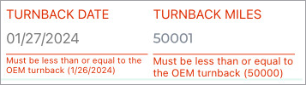
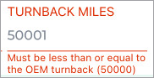
Turnback Miles / Turnback Kilometers1
Your employee role must have the Edit Turnback Miles / Kilometers permission to edit this value on a unit record. See "Roles & Permissions".
A unit's Turnback Miles / Kilometers is the odometer reading at which the unit must be removed from service. When it reaches this threshold, its status is automatically set to Turnback Reached so you can remove the unit from the fleet.
This field is automatically set when a unit is added or imported to the fleet, based on the Dealer Turnback (or your manufacturer's settings, if applicable).
Turnback alerts warn employees when the Turnback Date is approaching. See "Unit Availability & Alerts" for more information.
Note: Separate settings for determining default Turnback may be managed by your manufacturer at the OEM level. If so, then restrictions may be in place when it comes to managing Turnback settings and editing Turnback fields.
Depending on your manufacturer, you may not be allowed to manage Turnback Date settings or edit Turnback Dates at all, regardless of your permissions. See "Dealer Restrictions for Turnback" below for more information about restrictions.
Unit Notes
For situations that call for a unit-related note that is independent of any specific agreement, you can enter these notes in the Unit Notes text box when adding a unit (manually or using fleet import) or editing a unit record on the web or mobile app. The text box accepts up to 150 characters.
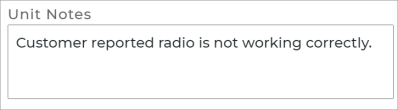
Once a note is added, you can view it on the unit record.
An event is logged in the unit's history when a note is saved.
Note: To protect customers’ sensitive data and ensure it is properly encrypted, you cannot save credit card numbers in notes and other text fields.
Unit Number
The Unit Number is the unit's unique identifier in the HMA SRC system.
Unit Tag Number
If your location uses tag numbers, a Unit Tag Number can be assigned to a unit. Not to be confused with a unique Unit Number, the Unit Tag Number carries through the open and close agreement processes.
Utilization
Utilization is the percentage of time that units in your fleet have been in use over its lifetime (known as lifetime utilization) or during a given period, as applicable.
You'll find this metric throughout HMA SRC, including:
- on the Fleet Performance Dashboard (
 )
)
- on individual unit records
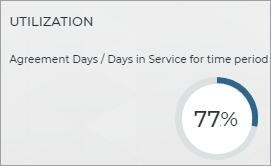
Hover to view the full-sized image.
- when assigning a unit to an agreement
- in many reports, such as Utilization, Full Inventory, and custom fleet reports

Hover to view the full-sized image.
Are your units not meeting their Acceptable Performance goals? See "Best Practices: Fleet Utilization" for tips on monitoring and improving utilization.
Note: A unit's Utilization may be color-coded throughout HMA SRC based your location's Acceptable Performance setting, so you can view, at-a-glance, how individual units are performing and take action, if necessary. If a unit's lifetime utilization meets the Acceptable Performance level, it will be color-coded green. If not, it will be color-coded red. Anytime you see a color-coded value, you can hover your cursor over the field to view a helpful tooltip with more information (e.g., "Utilization Meets the Acceptable Performance Level of 70%").
VIN
The unit's 17-character alphanumeric vehicle identification number (VIN), subject to VIN validation by the system when manually entered.
Year
Model year of unit, between 1970 and 2024. For automatically imported units, if the model's Year cannot be determined through the import, the current year is used as a default.
© 2026 TSD Rental, LLC